人脸管家Face Manager
人脸管家是一款面向团队与场所的门禁管理应用,用于人员授权、门禁设备绑定与通行记录查询。本页面提供人工联系方式、常见问题解答与使用手册入口。 Face Manager is an access-control management app for teams and premises. It is used for member authorization, door-device binding and entry-record lookup. This page provides our support contact, frequently asked questions and the user manual.
联系我们Contact Us
使用中遇到任何问题,欢迎通过以下方式联系我们,我们会尽快回复。 If you run into any problem, reach us through the channels below and we will get back to you as soon as possible.
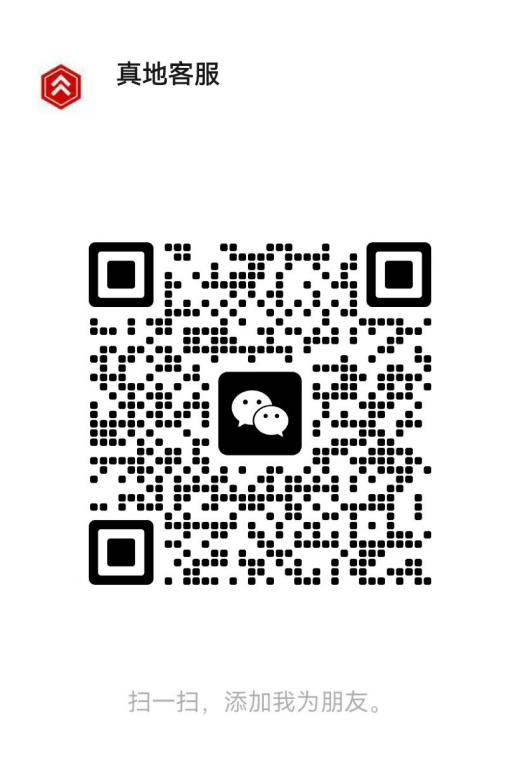
方式一:使用微信扫描左侧二维码,添加人工客服咨询。 Option 1: Scan the QR code with WeChat to chat with our support team.
方式二:打开 App,进入 我的 → 联系客服,页面内可直接长按识别同一二维码。 Option 2: Open the app and go to Me → Contact Support, where the same QR code is shown.
常见问题FAQ
如何绑定门禁设备? How do I bind a door device?
登录后进入「设备」页面,点击右上角添加按钮,按提示扫描设备上的二维码或输入设备序列号(SN)完成绑定。绑定成功后可在设备详情中查看在线状态。 After signing in, open the Devices page, tap the add button in the top-right corner, then scan the QR code on the device or enter its serial number (SN). Once bound, the device status is shown on its detail page.
视频套餐如何购买? How do I purchase a video plan?
在 iOS 设备上,套餐可通过 App 内的 Apple 内购(In-App Purchase)完成,付款由 App Store 处理,可在 Apple ID 的「订阅」中查看与管理。若购买后权益未及时到账,请通过上方方式联系我们并提供订单号。 On iOS, plans are purchased through Apple In-App Purchase. Payment is handled by the App Store and can be viewed or managed under Subscriptions in your Apple ID. If your entitlement does not arrive, contact us with your order number.
成员无法开门怎么办? A member cannot open the door. What should I do?
请依次确认:① 该成员已被授权到对应门禁点;② 设备处于在线状态;③ App 与设备网络正常。若仍无法通行,请记录发生时间与设备名称后联系我们排查。 Please check, in order: (1) the member is authorized for that door; (2) the device is online; (3) both the phone and the device have network access. If it still fails, note the time and device name and contact us.
如何修改成员权限或移除成员? How do I change or revoke a member's access?
管理员可在「成员」列表中选中成员,调整其可通行的门禁点,或直接移除。权限变更通常在数秒内同步到设备。 An administrator can select a member in the Members list to adjust the doors they may access, or remove them. Changes usually sync to the device within seconds.
App 需要哪些系统权限? Which system permissions does the app need?
相机(扫描设备二维码、拍摄人脸照片)、相册(选择已有照片)、蓝牙与本地网络(连接门禁设备)。所有权限仅在对应功能使用时申请,拒绝授权不影响其他功能使用。 Camera (scanning device QR codes and capturing face photos), Photos (choosing an existing photo), Bluetooth and Local Network (connecting to door devices). Each permission is requested only when the related feature is used, and declining does not block other features.
如何注销账号或删除数据? How do I delete my account or data?
可在 App 内「我的 → 设置 → 注销账号」发起申请;也可以联系我们协助处理。账号注销后,相关个人信息将按隐私政策约定的期限删除或匿名化。 Use Me → Settings → Delete Account in the app, or contact us for assistance. After deletion, personal data is removed or anonymized according to our Privacy Policy.
使用手册User Manual
更详细的操作步骤,请查看在线帮助中心。 For step-by-step instructions, see our online help center.